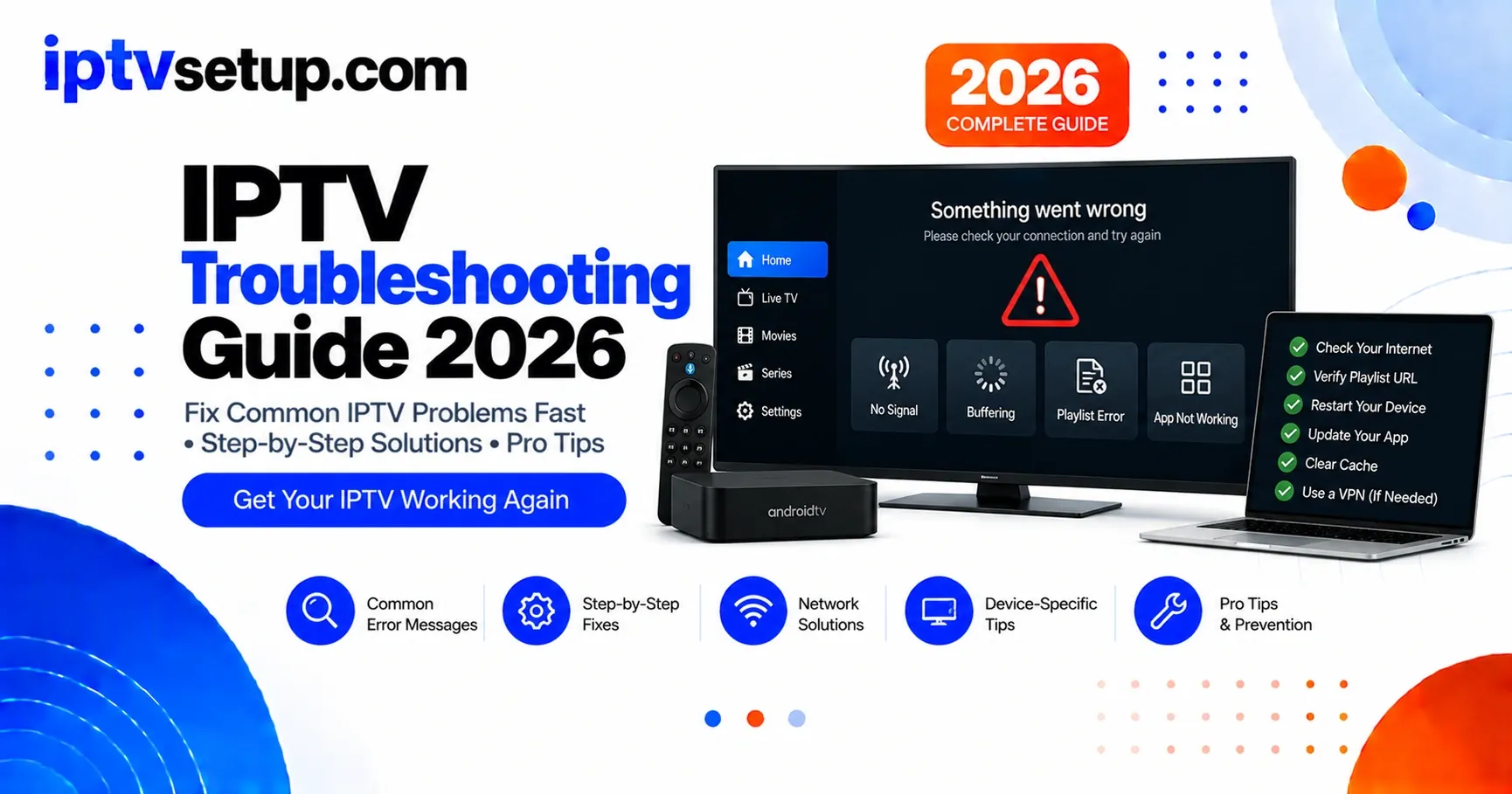
IPTV troubleshooting means diagnosing and fixing common streaming problems like buffering, freezing, failed authorization errors, channels not loading, and EPG data not appearing. After 3 years of daily IPTV use, I've encountered every issue and compiled the fixes that actually work - ranked by how often they solve the problem.
What Fixes Should You Try First?
Run through these in order before diving into specific issues. They fix most problems in under 2 minutes:
1. Restart your device
Unplug for 30 seconds - not just a soft restart. Clears memory and resets network connections.
2. Test your internet speed
Go to speedtest.net. Need 10+ Mbps for HD, 25+ for 4K. If you're below that, the issue is your connection, not IPTV.
3. Switch to Ethernet
Wi-Fi causes 80% of buffering issues. A $15 Ethernet adapter for Firestick eliminates most problems instantly.
4. Close background apps
Other apps eating bandwidth or memory cause freezing. Close everything except your IPTV app.
5. Lower stream quality
Switch from 4K to HD, or HD to SD in your app settings. If it stops buffering, your connection can't handle the higher quality.
6. Clear app cache
Settings → Applications → your IPTV app → Clear Cache. Fixes random crashes and slow loading.
What Are Common IPTV Problems & Fixes?
Buffering & Freezing - Most Common
What it looks like: Video stops every few seconds, loading spinner appears, stream stutters.
Internet fixes:
- Switch to Ethernet (biggest fix)
- Use 5GHz Wi-Fi band, not 2.4GHz
- Move router closer to device
- Pause downloads and updates on other devices
App fixes:
- Increase buffer size to 20-30 seconds in settings
- Enable hardware acceleration
- Clear app cache
- Lower stream quality
Black Screen / No Video
What it looks like: Audio plays but screen is black, or complete blank screen with no output.
- Change video decoder: hardware → software in player settings
- Try a different IPTV player app
- Check HDMI cable connections
- Restart the streaming device
- Test the channel on another device to isolate the issue
No Audio / Audio Sync Issues
What it looks like: Video plays but no sound, or audio is ahead or behind the video.
- Check device volume and mute settings
- Change audio codec in app settings
- Adjust audio delay in player settings (try -50ms increments)
- Test with a different channel
- Update the app to the latest version
Login / Authentication Errors
What it looks like: "Failed to authorize", "Invalid credentials", or can't connect to service.
- Check subscription is still active
- Copy-paste credentials - don't type manually
- Verify server URL format includes http:// prefix
- Check for typos - 0 vs O, 1 vs l
- Contact provider - their servers may be temporarily down
App Crashes
What it looks like: App closes unexpectedly, freezes completely, or won't open at all.
- Clear app cache and data
- Close all background apps and restart device
- Update to the latest app version
- Reinstall the app completely
- Try a different IPTV player
What Are the Device-Specific IPTV Fixes?
Firestick / Fire TV
- Clear app data: Settings → Applications → Manage Installed Apps
- Force restart: hold Select + Play/Pause for 10 seconds
- Check storage: Settings → My Fire TV → About → Storage
- Update Fire OS: Settings → My Fire TV → About → Check for Updates
- Use Ethernet adapter ($15) to eliminate Wi-Fi issues
Android TV / Box
- Disable power saving mode - it throttles performance
- Update Android OS in system settings
- Enable hardware acceleration in your IPTV app
- Clear system cache partition from recovery mode
- Factory reset as last resort
Smart TV (Samsung / LG)
- Update TV firmware: Settings → Support → Software Update
- Reset network settings: Settings → General → Network → Reset
- Clear TV app cache in app settings
- Consider a Firestick instead - better IPTV experience than built-in apps
iPhone / iPad / Apple TV
- Force close app: swipe up from bottom, swipe the app away
- Update iOS/tvOS: Settings → General → Software Update
- Reset network settings: Settings → General → Transfer or Reset
- Reinstall IPTV app from App Store
- Use GSE Smart IPTV for best iOS compatibility
What Are the Advanced IPTV Fixes?
Change DNS Servers
Your ISP's DNS can slow IPTV connections. Switch to Google (8.8.8.8) or Cloudflare (1.1.1.1) in your router settings. Sometimes fixes channels that won't load.
Enable QoS on Router
Quality of Service prioritizes streaming traffic. Find it in your router's advanced settings and set your streaming device to highest priority.
Check for ISP Throttling
Test with a VPN - if quality improves with VPN on, your ISP is throttling. NordVPN or ExpressVPN will fix this. Contact your ISP or switch providers.
Test a Different IPTV Player
Sometimes the issue is the player itself. If IPTV Smarters has issues, try TiviMate or VLC with the same credentials.
When to Contact Your Provider
Contact Provider When:
- Multiple channels are down simultaneously
- Issue started suddenly with no changes on your end
- Specific channels never work despite others being fine - check our IPTV channels guide to understand how channel lists work
- Account or billing problems
- You've tried everything above and nothing works
What to Tell Them:
- Device model and OS version
- IPTV app name and version
- Internet speed test results
- Specific error messages (send a screenshot)
- When the problem started
- Steps you've already tried
Frequently Asked Questions
Why does my IPTV keep buffering?
Nine times out of ten it's Wi-Fi, not your internet speed. Switch to Ethernet first - a $15 adapter for Firestick eliminates most buffering instantly. If you can't use Ethernet, increase buffer size in app settings and switch to 5GHz Wi-Fi. If only certain channels buffer, it's your provider's server quality, not your connection.
My IPTV app keeps crashing - what should I do?
Clear the app cache first (Settings → Applications → your app → Clear Cache). Then close all background apps and restart your device. If crashes continue, reinstall the app. If it still crashes, try a different IPTV player - sometimes the app has a bug with your specific device.
How do I fix audio sync issues?
Most IPTV players have an audio delay setting. In IPTV Smarters it's in the player controls. In TiviMate it's Settings → Player → Audio Delay. Adjust in 50ms increments until audio matches video. Inconsistent sync is usually a network problem causing dropped frames.
What internet speed do I need for IPTV?
10 Mbps for HD, 25 Mbps for 4K. But stability matters more than speed - a consistent 15 Mbps wired connection beats an unstable 100 Mbps Wi-Fi connection every time. If you're getting the right speed but still buffering, the issue is Wi-Fi instability, not bandwidth.
Should I use Wi-Fi or Ethernet for IPTV?
Always Ethernet if possible. Wi-Fi introduces packet loss and latency spikes that cause buffering even on fast connections. For Firestick, get a USB-C Ethernet adapter ($15). For Android boxes, use the built-in Ethernet port. The difference is dramatic.
Why do some channels work but others don't?
Individual channels can have issues on your provider's server. Try switching to a backup server if your provider offers one. If specific channels consistently don't work, report them - they may have a broken stream that needs fixing on their end.
How often should I clear my IPTV app cache?
Once a week is a good habit. I do it every Sunday alongside restarting my Firestick. It prevents gradual slowdowns from cache buildup. If you're experiencing sudden issues, clear cache immediately - it fixes about 30% of random problems.
My IPTV was working fine and suddenly stopped - why?
Three most likely causes: 1) Subscription expired, 2) Provider's server is down, 3) IP address changed and triggered a connection limit. Check subscription status first. Then test internet on another app. If both are fine, contact your provider - sudden outages are almost always on their end.