Every live stream you have ever watched — sports events, news broadcasts, YouTube livestreams — went through an encoder before reaching your screen. It is the invisible middle step that makes internet video possible. If you subscribe to an IPTV service, you do not need to think about encoders. But if you want to broadcast your own content, understanding how encoding works is essential.
Every Live Stream Goes Through One
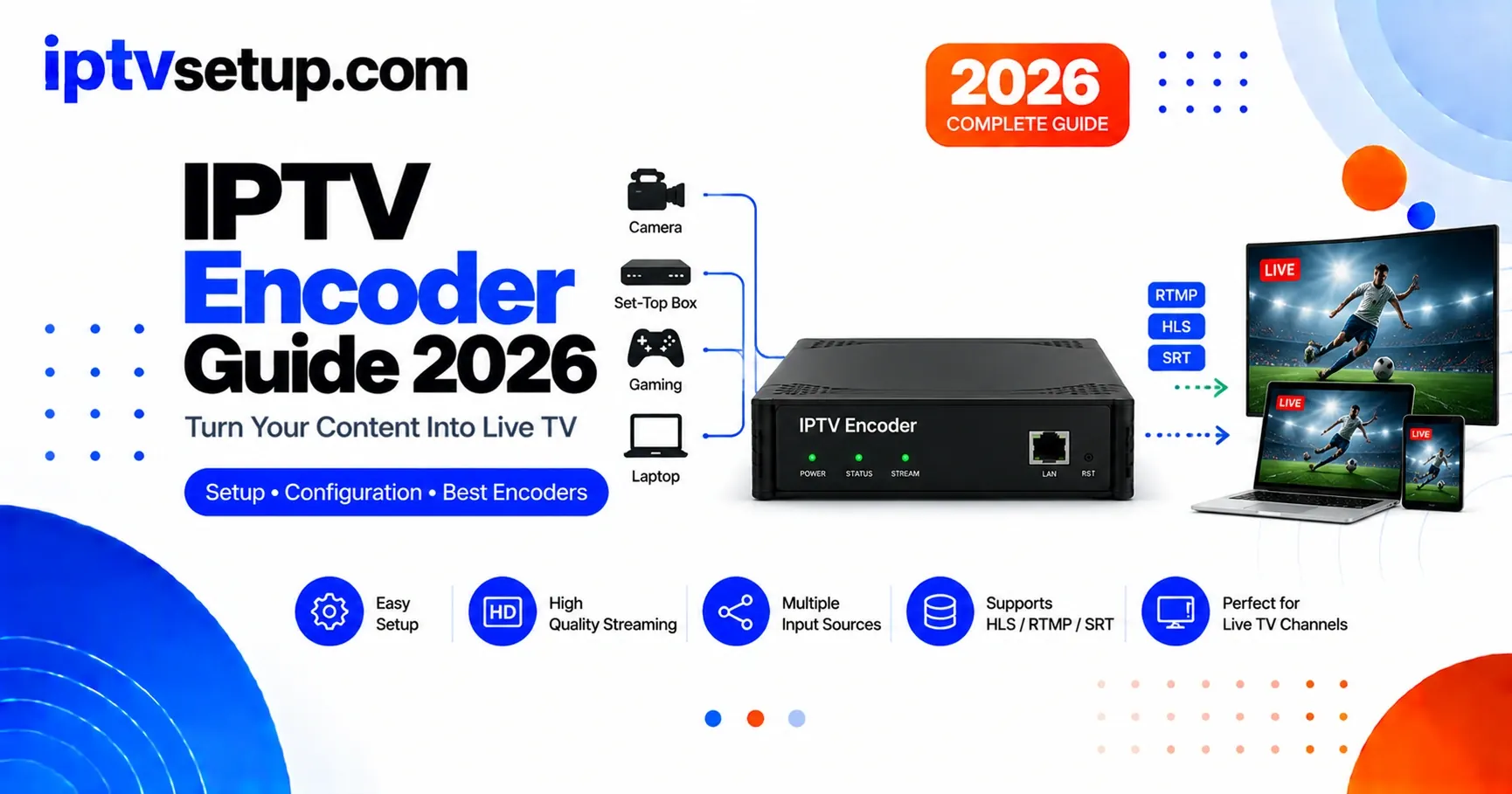
An IPTV encoder is a device or software that takes a raw video signal and converts it into a compressed digital stream that can be sent over the internet. Think of it as a translator: your camera speaks one language (raw video data), and the internet speaks another (compressed digital packets). Without the encoder in between, those two systems cannot communicate.
Without an encoder, you cannot stream live video over the internet at all. The raw video from a camera is far too large to transmit in real time. A single minute of uncompressed 1080p video can exceed 1 GB. An encoder compresses that down to a fraction of the size — typically 50-100 MB per minute — while keeping the quality watchable.
When you watch a channel on your IPTV app, it is being encoded in real time on the provider's end. They run encoder hardware that takes their satellite or cable feeds, compresses them, and sends the resulting streams to their servers — which your IPTV player then receives and decodes for you to watch.
The Encoding Pipeline: Capture, Compress, Stream
The encoding process follows three predictable steps regardless of whether you use hardware or software:
- Capture — The encoder receives a raw video signal from a camera, HDMI output, or satellite receiver. The type of input determines what kind of encoder you need — HDMI is most common for consumer gear, SDI is standard in professional broadcasting.
- Compress — It compresses the video using a codec (H.264 or H.265). This is the core of the job. The encoder analyzes each frame, discards redundant data, and creates a much smaller stream. H.264 is the universal standard. H.265 (HEVC) offers roughly double the compression efficiency — same quality at half the bitrate.
- Stream — The compressed stream is packaged using a delivery protocol like RTMP, HLS, or SRT and sent over the internet to its destination — whether that is a streaming server, an IPTV platform, or directly to viewers.
The encoder also handles audio encoding (typically AAC format) and synchronizes audio with video before transmission. Audio sync issues are one of the most common encoding mistakes — always test your audio delay before going live.
Hardware vs Software: Which One Do You Need?
Encoders come in two forms, and the choice depends on how you plan to stream:
Hardware Encoders
- Standalone devices with dedicated encoding chips
- No computer needed once configured
- Run 24/7 without crashes or reboots
- Sub-second latency — critical for live sports
- Cost: $150 to $2,000
Software Encoders
- Programs like OBS Studio, Wirecast, vMix
- Run on any PC or Mac
- Flexible with overlays, scenes, multiple cameras
- Dependent on computer performance
- Cost: Free (OBS) to a few hundred dollars
Hardware encoders are the standard for professional and mission-critical broadcasts. They are designed for continuous operation — no Windows updates, no driver crashes, no OBS memory leaks. Software encoders are better for multi-camera production, beginners, or anyone who wants to learn without spending money upfront.
Bitrate, Codecs, and Quality Settings
Getting the settings right is where most beginners struggle. The two most important decisions are codec choice and bitrate:
- H.264 — Compatible with everything. Use this if you want your stream to work on any device or platform. Target bitrate: 4000-6000 Kbps for 1080p at 30 FPS.
- H.265 (HEVC) — Better compression, half the file size. But older devices and some platforms do not support it. Use for IPTV distribution where you control the receiving hardware.
- Bitrate rule of thumb: Set your bitrate no higher than half your available upload speed. If your upload is 20 Mbps, cap your stream at 10 Mbps. This gives headroom for network spikes.
The most common mistake I see: people set their bitrate way too high thinking it will improve quality, only to cause constant buffering because their upload cannot keep up. Start conservative, test, and increase gradually. A stable 4000 Kbps stream looks better than an unstable 8000 Kbps stream that keeps dropping frames.
When Do You Actually Need an Encoder?
This is the most practical question, and the answer is straightforward:
You do NOT need an encoder if you subscribe to an IPTV service and just watch channels. The provider handles all encoding on their end. Your Firestick, Smart TV, or phone simply receives and decodes the already-encoded stream.
You DO need an encoder if you want to broadcast your own content — whether that is a live event, a CCTV feed, a church service, or your own TV channel. In that case, you sit on the transmitting side of the equation, and an encoder is what makes your video available to viewers.
If you are in the second group: start with OBS Studio (free) to learn the basics. If you need reliability for 24/7 streaming, graduate to a hardware encoder box. The knowledge transfers directly — the settings are the same, just the hardware changes.
Encoder FAQ
Can I watch IPTV without an encoder?
Yes. If you are a viewer, your IPTV provider handles encoding. You only need a player app on your device to decode the stream.
Is hardware encoding better than software?
For 24/7 use, yes. Hardware encoders do not crash, do not update mid-stream, and do not compete with other applications for system resources.
What bitrate should I start with?
4000-6000 Kbps for 1080p at 30 FPS. 2500-4000 Kbps for 720p. Always test before going live and check your upload speed first.
What internet speed do I need?
At least 10 Mbps upload per 1080p stream. Use wired Ethernet — WiFi drops frames unpredictably.
How much does a hardware encoder cost?
Entry-level units start around $150. Professional models range from $500 to $2,000. Software encoders like OBS are free.